I. Introduction
A. Hook:
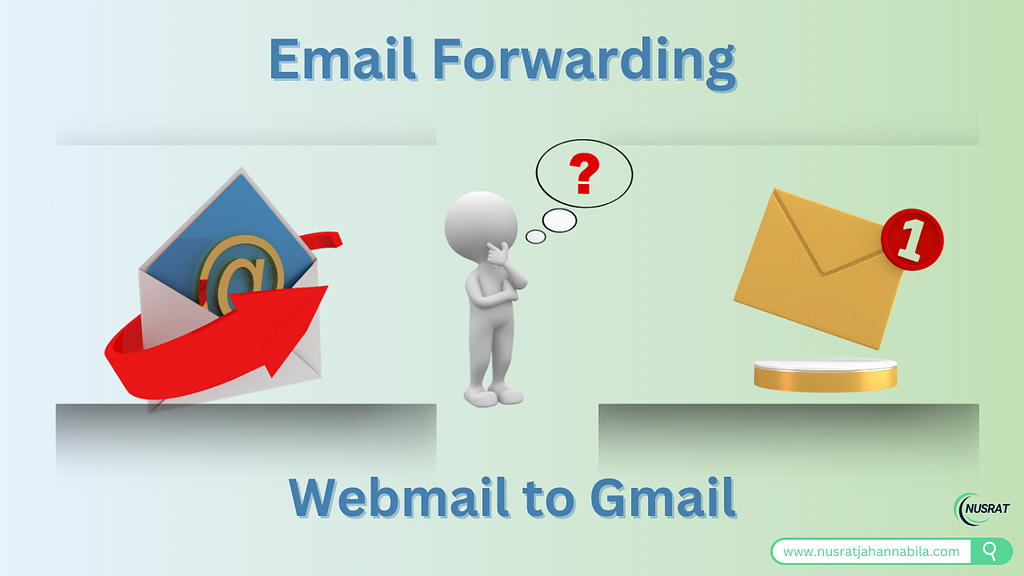
You’re running a business and dealing with emails through a webmail service. But you want to maintain all your emails in your personal Gmail inbox — how can you ensure that you don’t miss any email of significance?
B. The Problem:
In turn, managing multiple inboxes — be it those of a webmail service and Gmail — can become cumbersome, if not downright maddening. Switching between accounts perhaps has never been a smooth flow, often resulting in inefficiencies and miss outs on deserving emails which can be a major pain if you’re in the middle of dealing with vital conversations.
C. The Solution:
In this mad, mad world of email management, email forwarding can be your best friend. It helps streamline your communications by sending emails from your webmail account over to your Gmail account, so you don’t waste time and always keep connected.
D. What to Expect:
In this guide, I can walk you through the process to set up email forwarding for both webmail and Gmail. And I’ll share step-by-step examples and troubleshooting tips.
Webmail & Gmail: A Short Introduction E.
Webmail is an email service which is accessed via the web and usually tied to your domain like contact@domain.com. In comparison, Gmail has powerful features such as spam filtering, organizational tools and integration with additional Google services.
II. Why You Need Email Forwarding
A. Centralized Communication:
Simply forward emails from webmail to Gmail so you need check only a single inbox. This consolidation allows for not only easy communication but will also eliminates the need to always swap between accounts, thus streamlining the process both in your personal life and work life.
B. Time-Saving:
Discard the tediousness of logging into different accounts. Forwarding emailsBookend Mark Albright in front of his laptopManaging your inbox can take time away from what matters more, getting things done!
C. Prevent Missed Emails:
Once you’ve set up forwarding, there’s much less chance that you’ll miss any important messages lost in the shuffle of multiple inboxes.
D. Better Email Organization:
The overall layout of Gmail is quite simple, and it comes equipped with advanced sorting and filtering options to help you organize all your forwarded emails. You will be able to create labels to better organize your email and make it much easier to manage.
III. PART 1: Configure Email Forwarding for Webmail
A. Introduction to Webmail:
Webmail is basically a hosted email solution you access through a web interface such as cPanel or Roundcube. That is where many businesses run their communications with customers, clients and vendors.
B. Step-by-Step Guide:
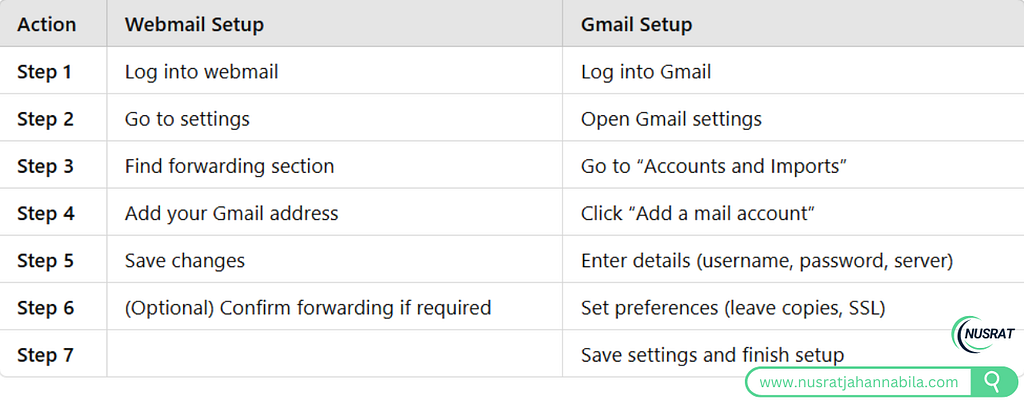
Step 1. You must log into your webmail account:
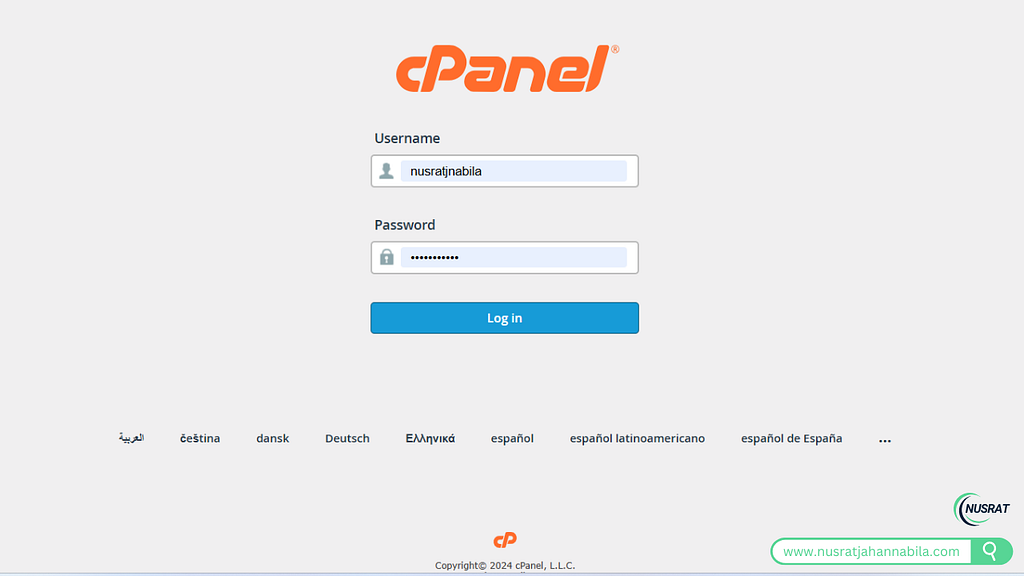
Go to your webmail provider’s login page and enter your credentials.
Find Email Settings:
Poke around for something called “Settings,” “Options,” or maybe “Email Settings.”
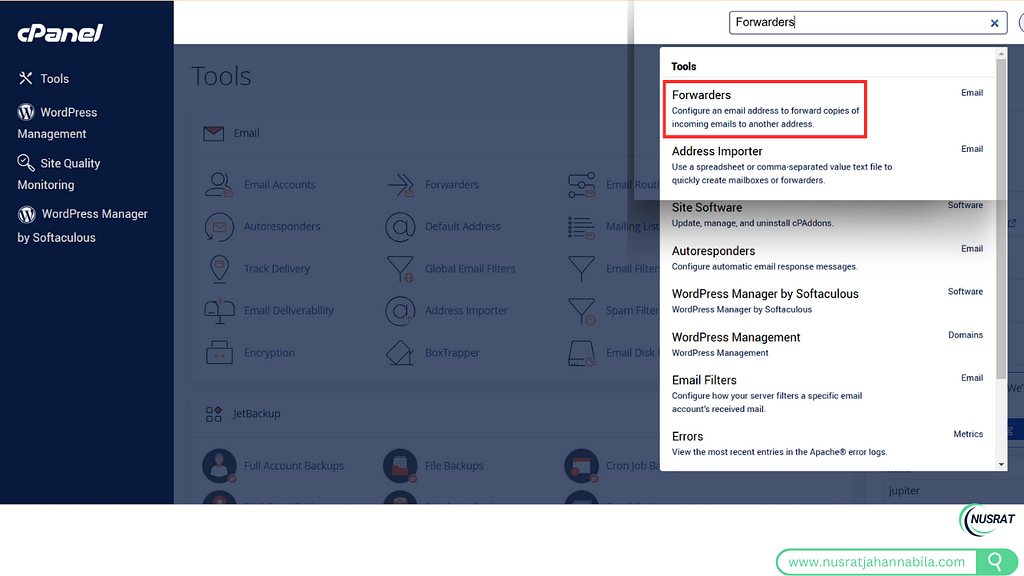
Step 1: Navigate to the Forwarding Section
Locate the “Forwarding” tab or subsection in your email settings.
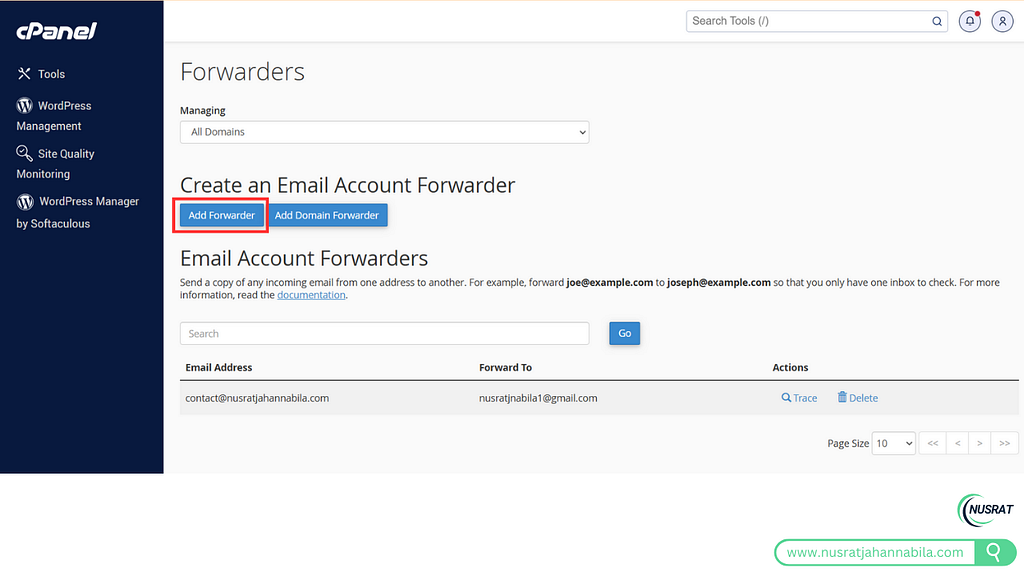
Add Forwarding Address:
Type the Gmail address that you want to forward to (e.g. nusratjnabila1@gmail.com).
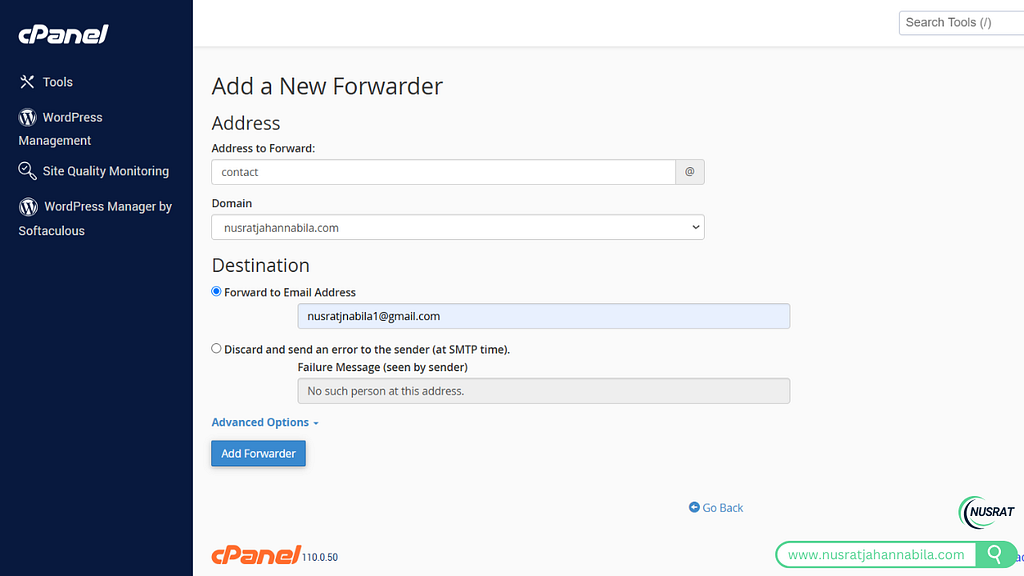
Save the Settings:
After you enter your forwarding address, be sure to save your changes.
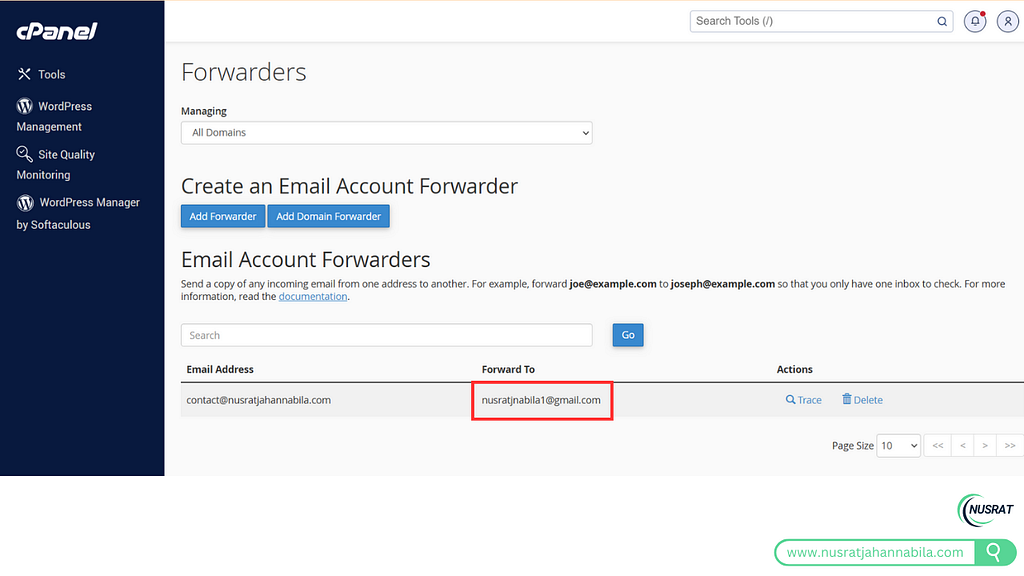
Confirm Forwarding (if needed):
Some webmail services may require you to confirm your forwarding address through an email confirmation link.
C. Troubleshooting:
There can be common issues, such as emails not being properly forwarded. Make sure to check for typos in the address, that the forwarding option is selected and see if the webmail system requires additional setup.
IV. Step 2: Configure Email Forwarding in Gmail
A. Overview of Gmail’s Forwarding Options:
Forwarding with Gmail is excellent, you can leave it alone and still have your email as it comes in from your webmail account and others.
B. Step-by-Step Guide:
Log Into Your Gmail Account:
Launch your web browser and visit Gmail.
Enter your Gmail credentials (mail id and password) for login.
Access Gmail Settings:
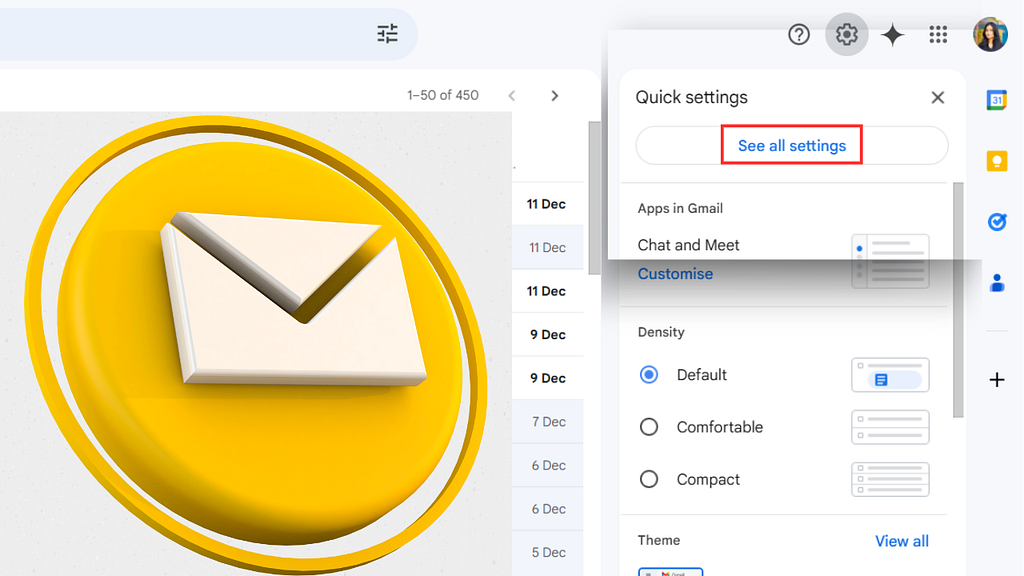
Well, first of all, go to your Gmail inbox and click the gear icon (⚙️) found in the right upper corner of your page.
Click on the gear icon and choose “See All Settings” from the dropdown.
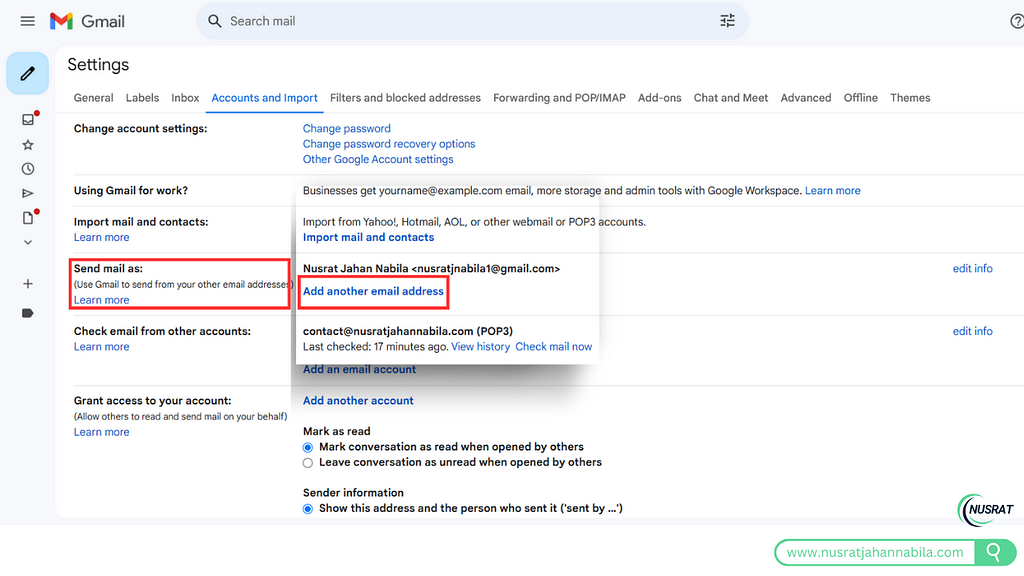
Click on the “Accounts and Imports” Tab:
In Settings, look for and then click on the “Accounts and Imports” tab at the top.
Scroll to the section called “Check mail from other accounts.”
Click “Add a mail account.” In the following prompts, a new window will pop up and help you installations.
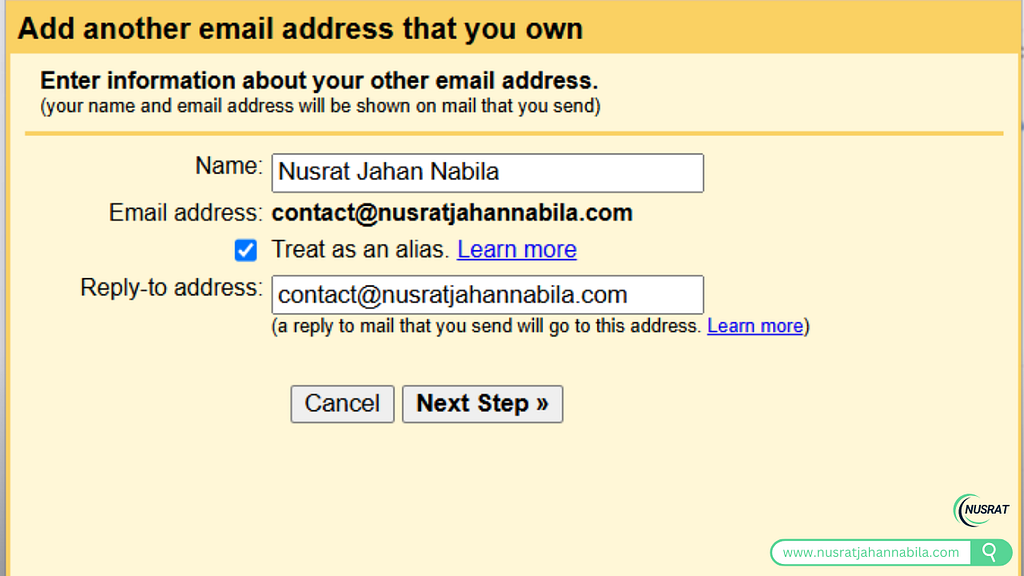
Add Your Email Address:
A pop-up window will appear asking you for the webmail address you want to connect (e.g., contact@nusratjanahnabila.com) click “Next.”
Mail Server In Configuration:
Select the “Import emails from my other account (POP3)” option and click “Next.”
Fill in the following fields:
- Username: Type the username for your webmail account. It is typically the same as your email address.
- Password: The password for your webmail account.
- POP Server: Type in the incoming mail server (mail.yourdomain.com). This information can typically be found in your webmail provider’s documentation.
- Port: POP uses a very specific port. Typically:
- Port 995 (SSL) if using a secure connection.
- Port 110 if not using SSL.
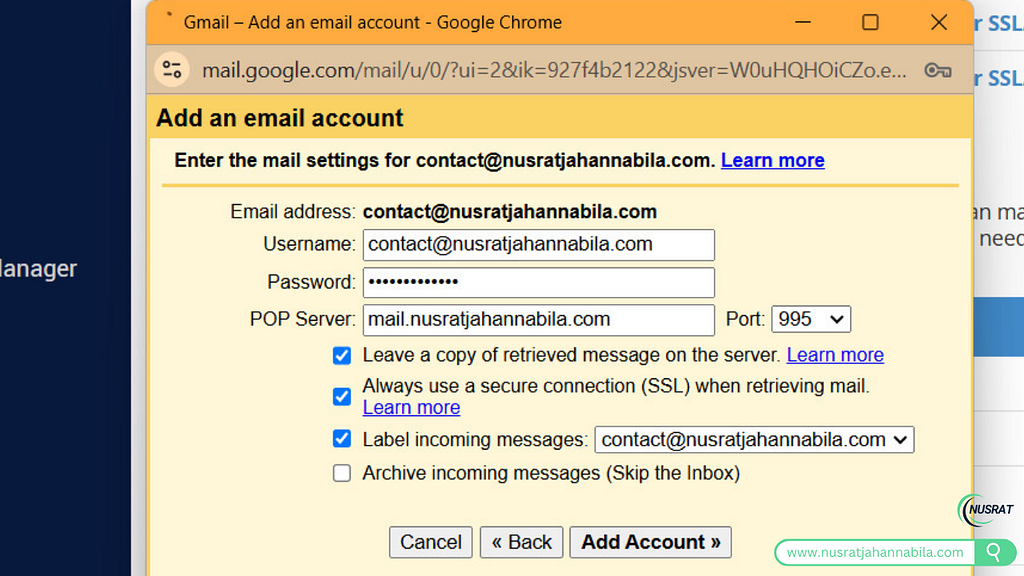
Change Incoming Message Settings:
Choose your preferences for how to deal with incoming messages:
- Leave a copy of retrieved messages on the server: Check this box if you want to have a copy of your emails in the webmail account.
- Use a secure connection (SSL) when retrieving mail: If your webmail provider offers SSL, check this box for enhanced security.
- Forward all incoming messages to another account: Tick this box and add a label (e.g., “Webmail”) to categorize emails when you forward them.
- Archive incoming messages: Leave this unchecked if you want the messages to go straight to your inbox.
Change Incoming Message Settings:
Choose your preferences for how to deal with incoming messages:
- Leave a copy of retrieved messages on the server: Check this box if you want to have a copy of your emails in the webmail account.
- Use a secure connection (SSL) when retrieving mail: If your webmail provider offers SSL, check this box for enhanced security.
- Forward all incoming messages to another account: Tick this box and add a label (e.g., “Webmail”) to categorize emails when you forward them.
- Archive incoming messages: Leave this unchecked if you want the messages to go straight to your inbox.
Save and Add the Account:
After entering all your information, click “Add Account.”
Gmail will try to retrieve emails utilizing the supplied credentials and settings. If things go well, you will be taken to an account linked to your webmail in Gmail.
Save the Settings:
Finally, click on “Save Changes” to enable the forwarding option.
Once you’ve done that, Gmail will start pulling emails from your webmail account and show them in your inbox. You can also forward emails for better organization by creating filters and labels.
C. Troubleshooting:
If you do face such issues, like delays or incorrect forwarding, be sure to double-check that forwarding is properly enabled, and check your Gmail’s spam or promotions folders to see whether emails are accidentally landing in there.
V. A Walkthrough of the Example, Webmail to Gmail
How to Set Up Forwarding for a Business Email:
Suppose you have a professional email, contact@nusratjanahnabila.com. When you forward this to nusratjnabila1@gmail.com, you streamline your communications and make it much easier to keep track of important messages!
B. Real-Life Scenario:
Let’s say that you’re a freelancer or small business owner. If all your work emails are delivered to your webmail account but you want everything to live in Gmail so you can just search it all, follow the setup steps below and everything important will be delivered to one place where you can easily access it — no more stress or missed messages!
VI. Benefits of Email Forwarding
A. Streamlined Communication:
It gives you one inbox to manage — not multiple.
B. More Control of Your Emails:
You can leverage Gmail’s tools for organizing and filtering email, greatly improving your workflow.
C. Increased Productivity:
It increases your productivity by reducing the time spent managing your emails.
D. Easy Setup Process:
The process of setting up forwarding is very simple and easy to use, so even those who are not particularly tech-savvy can easily set it.
VII. Common Issues and Solutions
Q. Problem 1: Forwarded emails arrive late
Solution: Check the server settings of your webmail or verify whether your forwarding configuration is correct.
B. Problem 2 Gmail does not show forwarded email
Solution: Double-check that forwarding is enabled, and check Spam or Promotions folders in Gmail.
C. Problem 3: Invalid Email Address
Solution: Anyone who has ever signed up for a new email account will be familiar with this one, but ensure there are no typos in both your webmail mailbox and Gmail address — still, you’d be surprised how often this can go wrong!
VIII. Advanced Tips and Tricks
A. Set up filtering on forwarded emails in Gmail:
Easily organize forwarded emails with Gmail filters: Create rules to automatically labels and categorize your forwarded emails so that they stay organized and easy to find.
B. Effectively Handling Multiple email Accounts:
For integrating different addresses into the same interface, check out Gmail’s multiple inboxes functionality.
C. Respond to or Sign Email as Forwarded:
Be professional- Have a signature/ auto-response.
IX. Conclusion
A. Recap:
Email is a really important way of communication in today world and the setup of forwarding can help you a lot while dealing with your emails. As mentioned, you can follow the step-by-step guides: Webmail, Gmail.
B. Call to Action:
Why wait? So, set up for email forwarding today, and you’ll be able to keep your inbox more organized and focus on what really matters!
C. Final Thoughts:
So managing your emails should not be that difficult. One of the easiest and most effective ways to do this is through email forwarding, so get out there and start reaping the benefits!
X. Additional Resources
A. Webmail Provider Documentation Links:
Refer to your webmail provider’s documentation for more detailed instructions on email forwarding.
B. Gmail Help Center:
For further troubleshooting, or if you need help with advanced settings, use Gmail’s help center.
XI. Table: Comparison of Webmail and Gmail Forwarding Features