
Introduction
1.1 Overview of WordPress
WordPress is a powerful content management system that powers over 40% of all websites on the internet. It’s user-friendly, customizable, and offers a robust platform for creating anything from a simple blog to a full-fledged e-commerce site.
1.2 Importance of Installing WordPress Manually
While many hosting providers offer one-click installations, manually installing WordPress allows you to understand the intricacies of the platform better. This knowledge is invaluable as it enables you to troubleshoot issues effectively and customize your website more profoundly.
1.3 Benefits of Manual Installation
- Full Control: You get to decide what goes into your setup without unnecessary extras.
- Customizability: Tailor your installation according to your requirements.
- Improved Security: A manual installation often bypasses vulnerabilities associated with auto-installers.
1.4 Why Choose nusratjahannabila.com for the Demonstration
Using nusratjahannabila.com as an example provides a personal touch; it’s more relatable and showcases real-world application. Plus, who wouldn’t want to follow along while setting up a site named after their favorite personalities?
2. Preparation:
Getting Ready for Installation
2.1 Choosing the Right Hosting Provider
Selecting a hosting provider is crucial. Consider the following factors:
- Speed: A fast server ensures quicker loading times.
- Uptime: Look for at least a 99.9% uptime guarantee.
- Support: Choose providers known for their helpful customer service.
Examples of Hosting Providers:
- Bluehost: Officially recommended by WordPress, it’s reliable and beginner-friendly.
- SiteGround: Known for excellent customer support and performance.
2.2 Registering and Setting Up a Domain
To get started, you’ll need a domain name:
- Purchasing the Domain: Use reputable registrars like GoDaddy or Namecheap. For instance, you could purchase nusratjahannabila.com here.
- Configuring Nameservers for Hosting: This directs your domain to your web host, linking it to your site.
- ns1.hostingprovider.com
- ns2.hostingprovider.com
2.3 Tools You’ll Need
- cPanel Access: Important for managing your website files and databases.
- File Transfer Protocol (FTP) Client: Software like FileZilla helps you transfer files to your server.
- Text Editor: Use a simple editor like Notepad++ for editing configuration files.
3. Step 1: Downloading WordPress
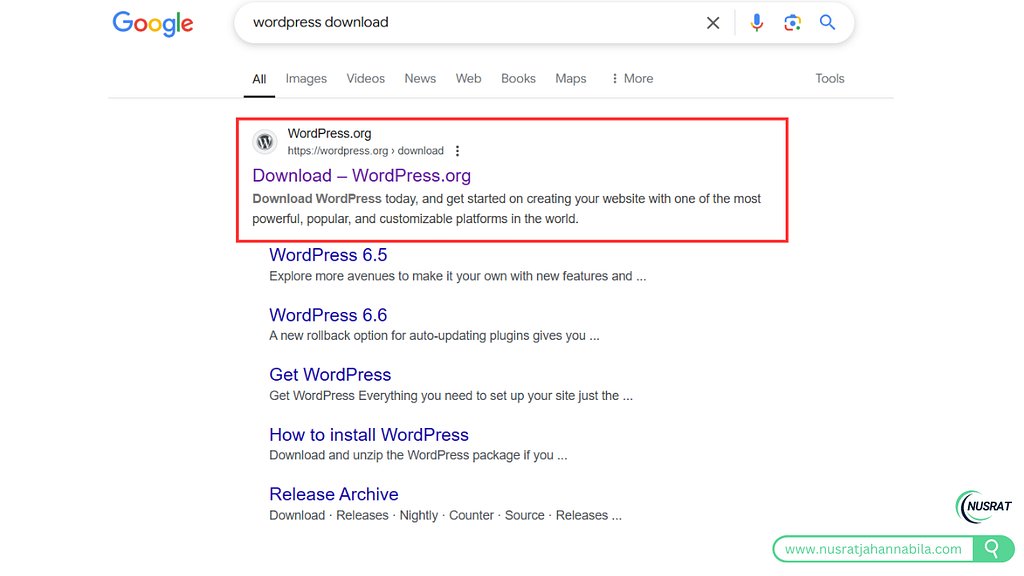
3.1 Accessing WordPress.org
Head over to WordPress.org, the official site, to ensure you download the most recent version.
3.2 Downloading the Latest WordPress Version
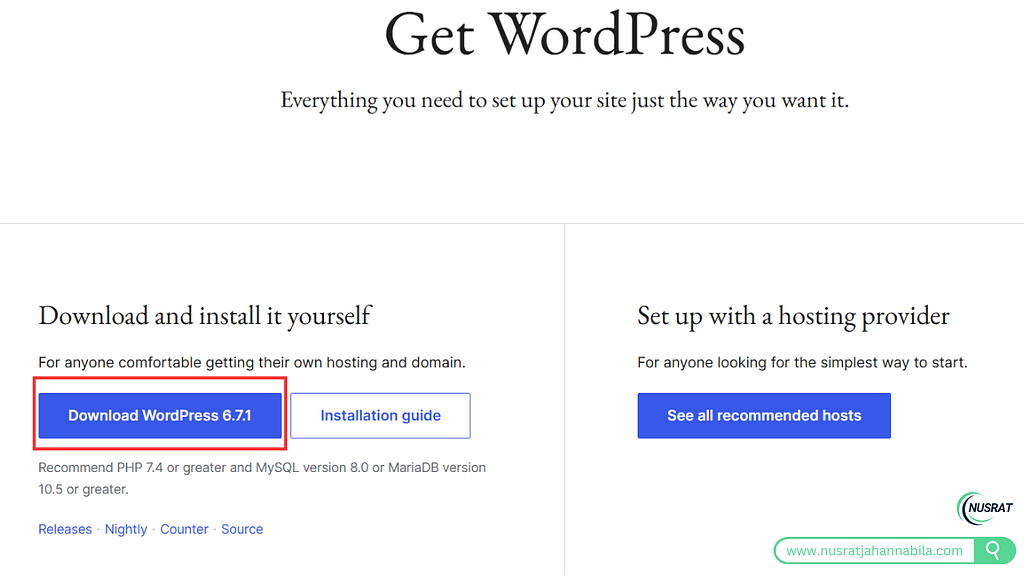
Click on the “Download” button. You’re looking for the latest stable release — this ensures you get the best features and security updates.
3.3 Extracting WordPress Files to Your Computer
After downloading, extract the WordPress zip file to a folder on your computer. This action prepares the files for uploading.
4. Step 2: Uploading WordPress Files
4.1 Understanding the Root Directory (public_html)
Your root directory is where your website files will reside. It’s often named public_html or the main domain folder.
4.2 Using cPanel’s File Manager to Upload Files
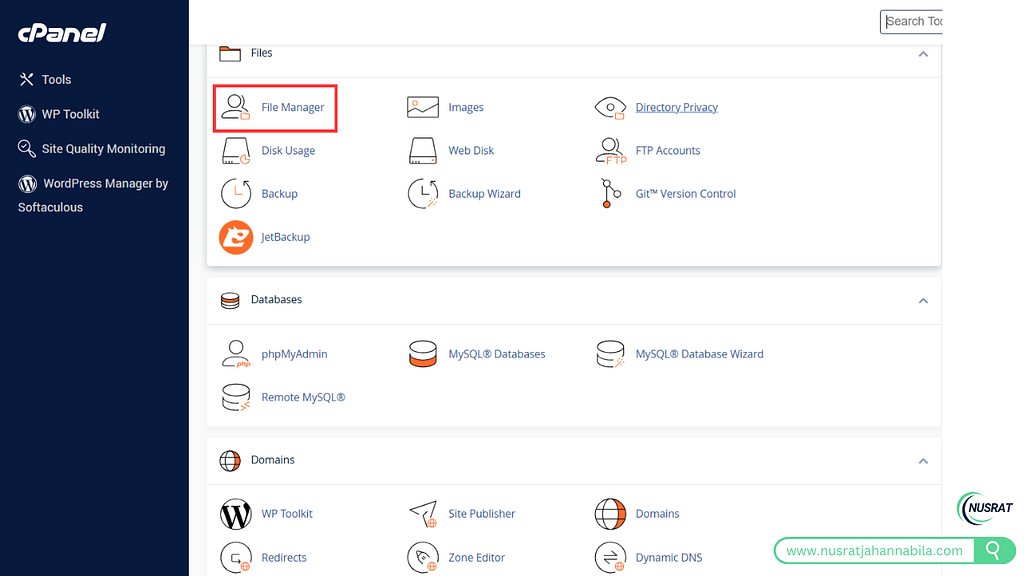
Log in to your cPanel and navigate to File Manager. You can upload files directly here, which is handy if you’re not comfortable using an FTP client.
4.3 Using FTP (Optional) for File Transfer
If you decide on using FTP:
- Open your FTP client and connect to your server using your FTP credentials.
- Drag the extracted WordPress files into the public_html directory.
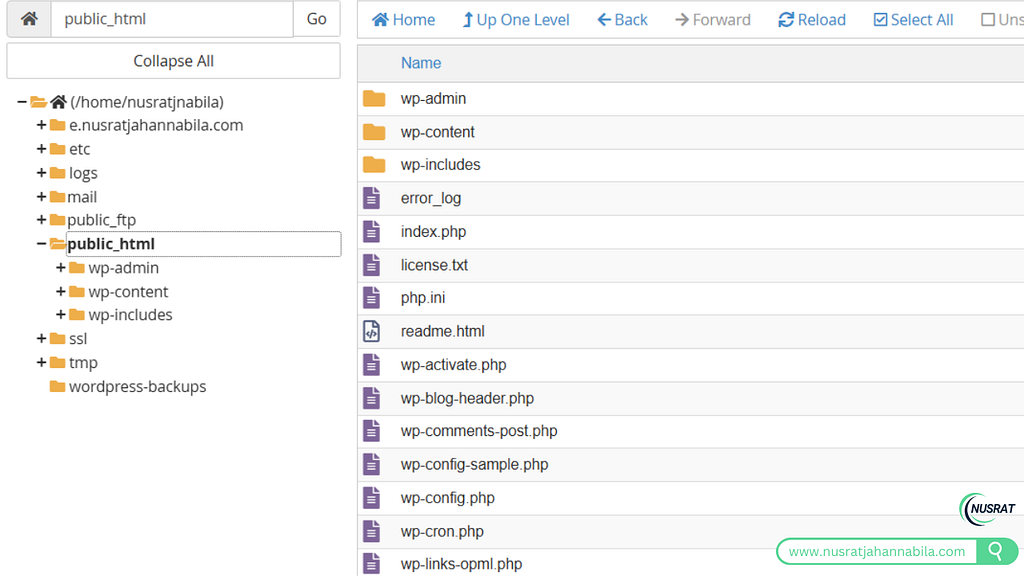
4.4 Verifying the Upload
Make sure that the necessary folders and files (wp-content, wp-config-sample.php, etc.) are correctly uploaded. This step is crucial for a successful installation.
5. Step 3: Setting Up a Database
5.1 Accessing MySQL Database Wizard in cPanel
In your cPanel, find and click on the MySQL Database Wizard icon to create a new database.
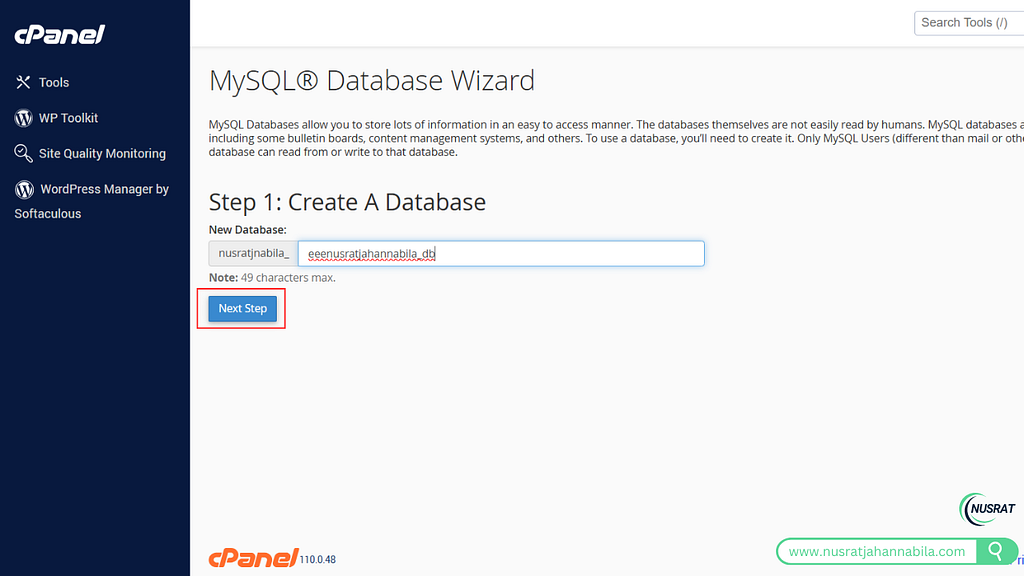
5.2 Creating a New Database
Name your database (e.g., nusrat_db). Keeping it relevant helps avoid confusion later.
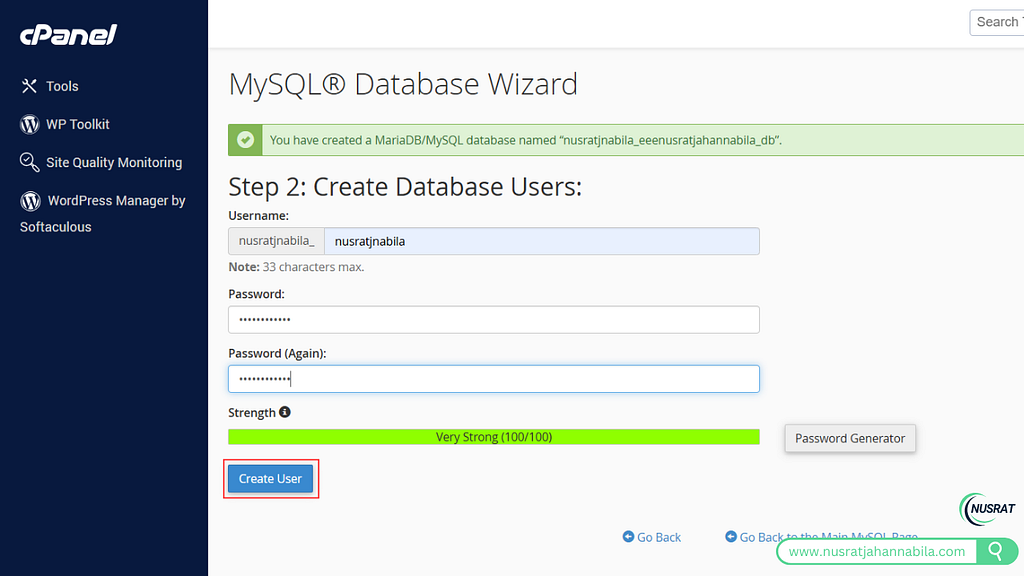
5.3 Creating a Database User
Create a new user with a strong password — this enhances your database’s security.
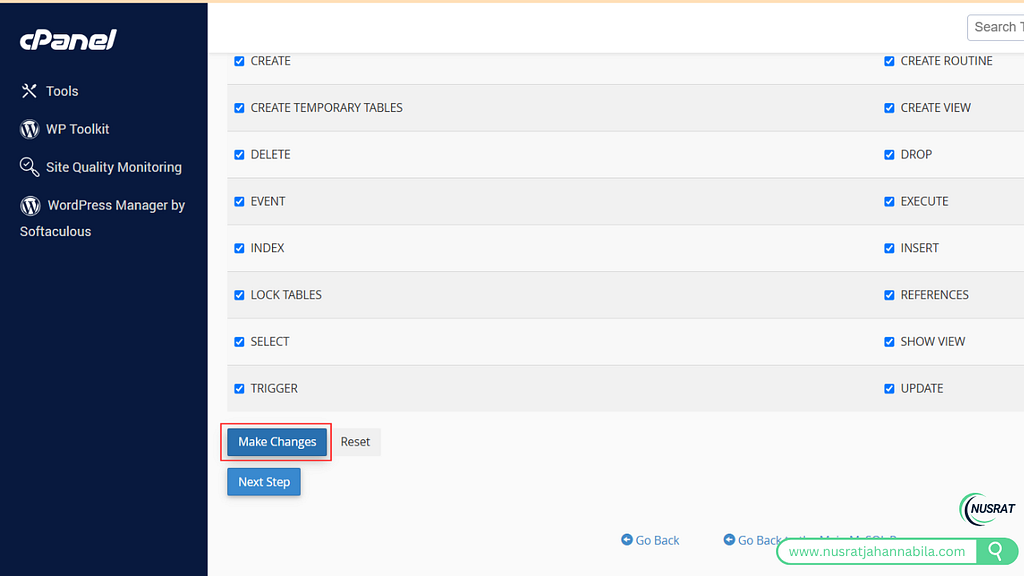
5.4 Assigning User Permissions
Make sure to grant full privileges to the user you just created. This ensures WordPress can access and manage the database.
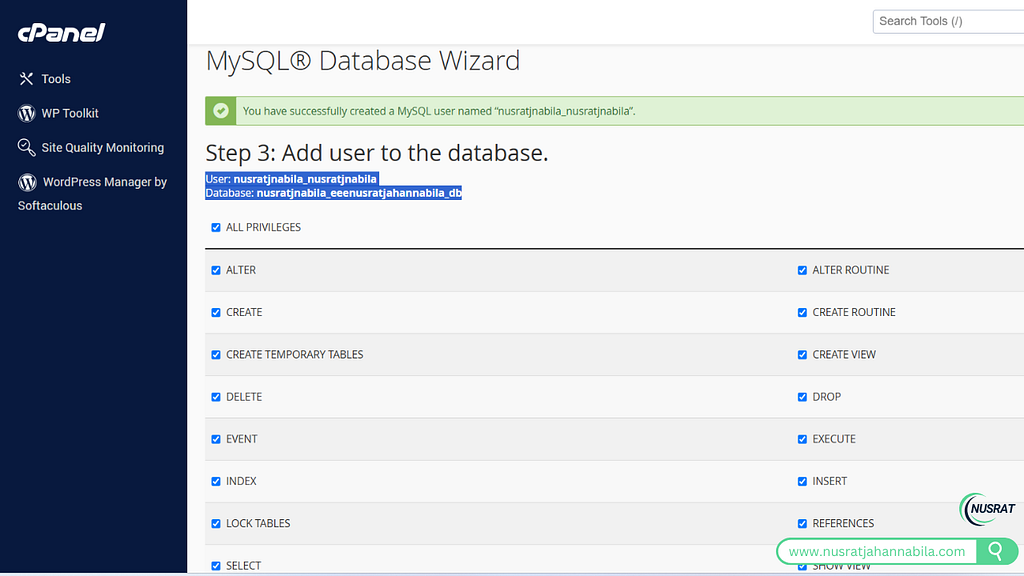
5.5 Recording Database Credentials for Later Use
Keep your database name, username, and password handy; you’ll need these in the next steps.
6. Step 4: Configuring WordPress
6.1 Accessing the WordPress Installation Wizard
Now, visit your site (e.g., nusratjahannabila.com). This action should bring up the WordPress installation wizard.
6.2 Entering Database Information
Fill in the database name, username, password, and database host (usually ‘localhost’).
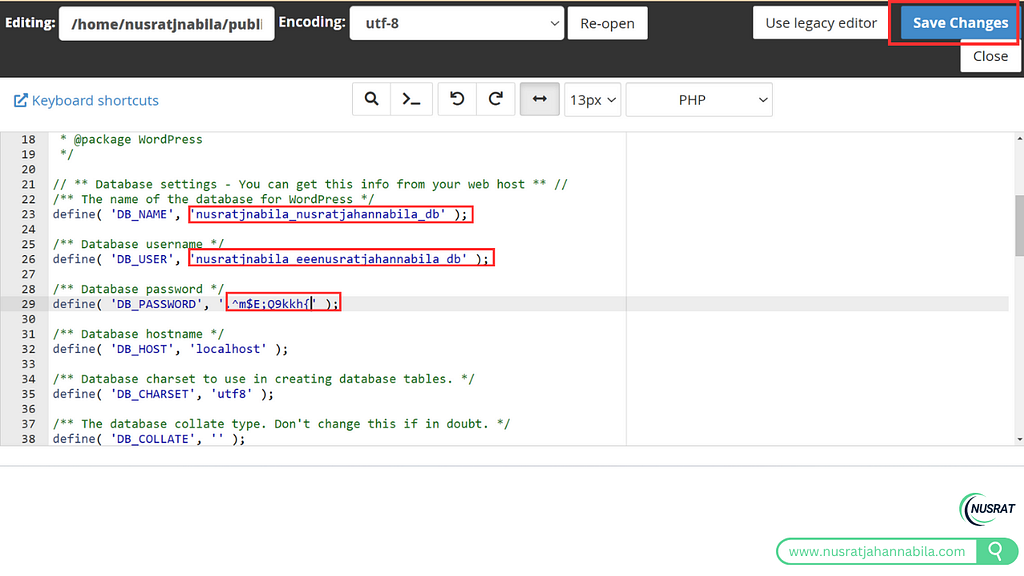
6.3 Customizing the wp-config.php File (Optional Advanced Users)
You can edit this file for advanced settings, such as adding your security keys and modifying the table prefix to improve your site’s security.
6.4 Running the Installation
After entering the required info, click on the Submit button, and then follow the prompts to run the installation.
7. Step 5: Completing the Installation
7.1 Setting Site Information
Input your site title (e.g., Nusrat Jahan Nabila), admin username, and password. Make sure to choose a strong password for security.
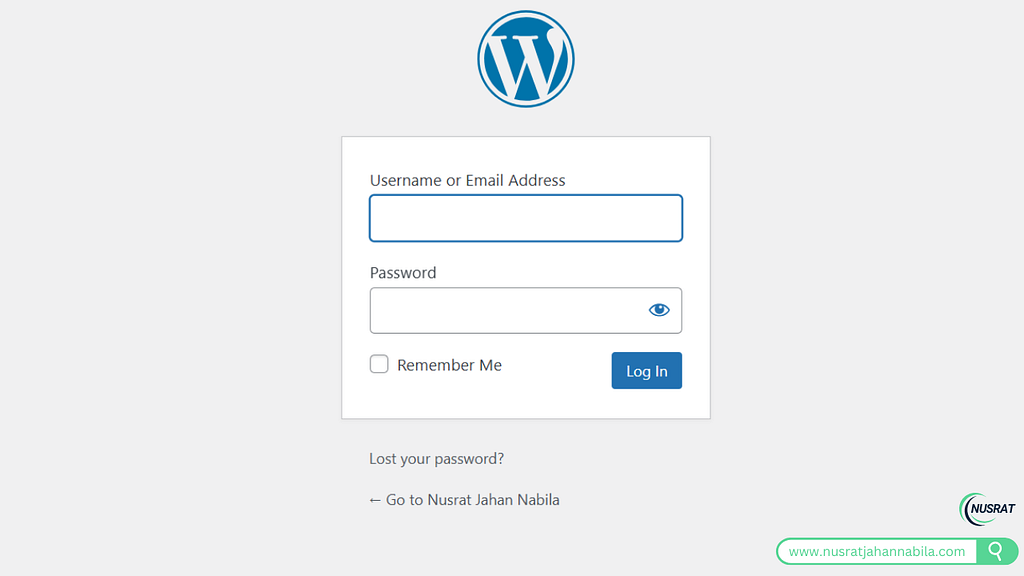
7.2 Logging Into the WordPress Dashboard
Once the installation is done, you can log in at www.nusratjahannabila.com/wp-admin using your admin credentials.
8. Post-Installation Setup
8.1 Choosing and Installing a Theme
Selecting a theme is one of the most enjoyable parts of setting up your site.
- Free Themes vs. Premium Themes: Free themes are great to start with, but premium themes offer more features and support.
- How to Install a Theme from WordPress Repository: Navigate to Appearance > Themes > Add New in your dashboard.
8.2 Installing Essential Plugins
Here are a few essential plugins to consider:
- SEO Plugin (e.g., Yoast SEO): Helps optimize your site for search engines.
- Security Plugin (e.g., Wordfence): Protects your site from threats.
- Backup Plugin (e.g., UpdraftPlus): Ensures you can restore your site if something goes wrong.
- Caching Plugin (e.g., WP Rocket): Improves site speed.
9. SEO Optimization for nusratjahannabila.com
9.1 Configuring SEO Settings
- Change permalinks to “Post Name” for better readability and SEO.
- Add meta descriptions to your pages for clarity in search results.
9.2 Submitting Sitemap to Google Search Console
After installing an SEO plugin, generate and submit your sitemap to help Google index your site efficiently.
9.3 Optimizing Site Speed
- Compressing Images: Use tools like Smush to reduce image sizes without quality loss.
- Enabling Caching: This saves server resources and makes your site faster.
9.4 Mobile Responsiveness Check
Make sure your site is mobile-friendly. Use Google’s Mobile-Friendly Test to see how responsive it is.
10. Enhancing Website Security
10.1 Changing the Default Admin Username
Changing this helps protect against hackers who often target the default “admin” username.
10.2 Enabling Two-Factor Authentication
Add an extra layer of security using plugins like Google Authenticator for your login page.
10.3 Updating WordPress Core, Themes, and Plugins Regularly
Keep everything updated to protect against vulnerabilities.
10.4 Limiting Login Attempts
Plugins like Limit Login Attempts will help block access to anyone trying to guess your password.
11. Advanced Configurations
11.1 Editing .htaccess for Custom Redirects
This file helps manage your website’s URL structure and can enhance SEO.
11.2 Enabling SSL (HTTPS) for Secure Connections
A certificate ensures that data transferred between users and your site is secure, which is now a necessity.
11.3 Setting Up Multisite (Optional)
If you plan to manage multiple sites, WordPress multisite is a great feature that allows you to do this from a single dashboard.
11.4 Customizing the robots.txt File
Control how search engines crawl your site with this simple file.
12. Troubleshooting Common Issues
12.1 Installation Errors
- Database Connection Errors: Double-check your database details for accuracy.
- PHP Version Issues: Ensure your server meets WordPress’s PHP requirements.
12.2 File Permission Errors
Check whether your files and folders are set to the correct permissions (usually, 755 for folders and 644 for files).
12.3 Debugging Tips
- Enabling Debug Mode in WordPress: This can help identify any errors appearing on your site.
12.4 Restoring from Backup
Having a backup will save your day if something goes wrong. Use your backup plugin for easy restoration.
13. Tips for Managing Your Website
13.1 Regular Backups
Schedule regular backups to ensure you don’t lose any important content.
13.2 Monitoring Website Traffic with Google Analytics
Integrate Google Analytics to understand your audience and improve your site based on their behavior.
13.3 Content Planning and Publishing
Plan your content strategy to keep your site fresh and engaging. Consistency is key!
13.4 Maintaining SEO Rankings
- Regularly update your blog with quality content.
- Build backlinks to increase your site’s authority.
14. Case Study: Building nusratjahannabila.com
14.1 How the Installation Process Was Done
By following the steps above, setting up nusratjahannabila.com has been a fun and educational experience.
14.2 Challenges Faced and Overcome
Encountering a database connection error was a minor setback; however, it provided a great learning opportunity.
14.3 The Final Outcome
The site is now fully operational, functional, and ready to start attracting visitors!
15. Frequently Asked Questions (FAQs)
15.1 Why Install WordPress Manually Instead of Using Auto Installers?
Manual installation gives you hands-on experience and a deeper understanding of your website.
15.2 How Long Does the Installation Take?
Typically, a manual installation can take anywhere from 20 minutes to an hour, depending on your familiarity with the process.
15.3 What If I Forget My Admin Login Credentials?
You can reset your password using the “Lost your password?” link on the login page.
15.4 Can I Install WordPress Locally First?
Absolutely! Tools like XAMPP or MAMP allow you to set up WordPress locally for testing.
16. Conclusion
16.1 Celebrating Your Website’s Launch
Congratulations, you have successfully installed WordPress! This is a significant milestone.
16.2 The Endless Possibilities with WordPress
With your new setup, the creativity and possibilities are endless. Explore themes, plugins, and customizations that suit your needs.
16.3 Next Steps: Content Creation and Marketing
Now that everything is set up, it’s time to focus on creating valuable content and marketing your site.
16.4 Encouragement to Explore and Grow nusratjahannabila.com
Embrace the journey of building your site. Keep learning and experimenting to make nusratjahannabila.com the best it can be!
17. Additional Resources
17.1 Links to Official WordPress Documentation
17.2 Recommended Tools for WordPress Users
- SEO Tools: Ahrefs, Moz
- Design Tools: Canva, Adobe Spark
17.3 Online Communities for Support
- Join forums like WordPress.org Support Forum or Reddit’s r/WordPress for tips and assistance.
Enjoy the process of building your site — every step is an opportunity to learn!